Another video of my bot travelling inside the house

Friday, April 6, 2012


Current sensor for MegaBot
MegaBot updated with current sensor from Sparkfun
Now it can sense motors overload, when it is stuck.
The sensor


Now it can sense motors overload, when it is stuck.
The sensor

The updated bot

The obstacle handling
Friday, March 9, 2012
BeagleBone PWM
Today I discovered a few important things.


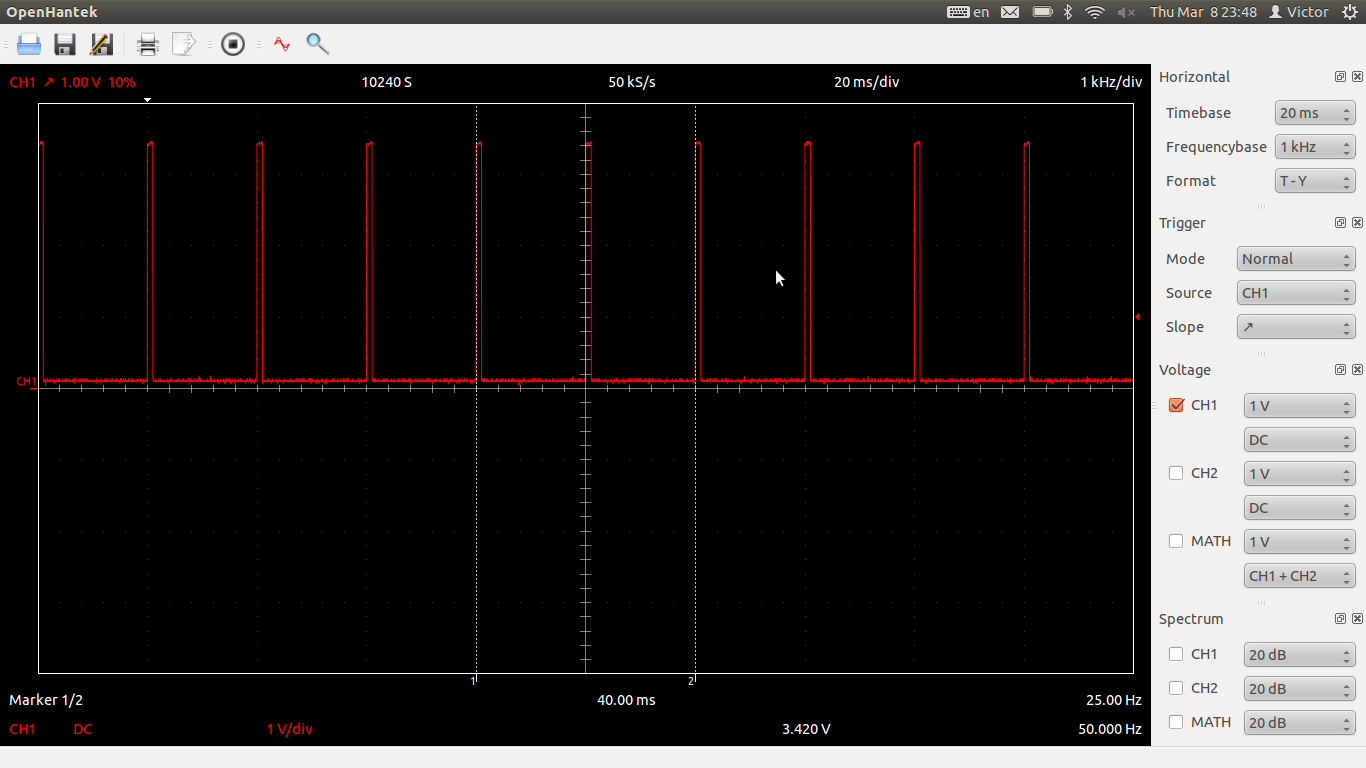
1. PWM and GPIO in BeagleBone can be activated from shell. And it can be used for servo control.
2. DSO 2090 has linux software on http://www.openhantek.org. Finally, I don't need Windows for my scope.
PWM pulses

Wi-fi adapter that I use

Monday, March 5, 2012
Ubuntu wi-fi auto connect
I had 2 days of headache trying to make Beaglebone to connect to my wi-fi network upon startup. I installed ubuntu on it (oneiric 11.10). Currently it has only command line interface via serial.
Here is the solution how to configure it. My wi-fi network is open an has MAC connection control.
/etc/network/interfaces
/etc/wpa_supplicant.conf
Here is the solution how to configure it. My wi-fi network is open an has MAC connection control.
sudo apt-get install wpasupplicant
/etc/network/interfaces
auto wlan0
iface wlan0 inet dhcp
wpa-driver wext
wpa-conf /etc/wpa_supplicant.conf
/etc/wpa_supplicant.conf
ctrl_interface=/var/run/wpa_supplicant
network={
ssid="MyHomeNetwork"
scan_ssid=1
key_mgmt=NONE
}
Tuesday, November 22, 2011
Mega168 bot and servo control
At the picture you can see my bot improved. All wires hided inside the box. Scan algorithm was improved as well. Now I can release him for long autonomous traveling inside my house.
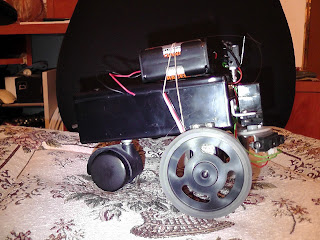


For servo coding I used my USB scope DSO-2090. All pulses was measured perfect.

This pulse controls the servo position. 1 ms - the servo edge position.

Sunday, November 13, 2011
Mega168 bot
I built this bot from mega168, a few servos and proximity sensor. It looks around and founds a way to avoid obstacles. The program is written by me. Every day the software getting better. The servo control code is not so complicated. Here are some pictures.


Thursday, August 18, 2011
Auto switch off the computer
Recently I managed to set up my computer for auto switch off at specific times. Now it can be used only from 15:00 till 18:00. The Internet usage should be cut, isn't it? Otherwise, it interferes with real life. Especially for children.
You can setup it in Windows 7 by creating a tasks. In Control panel->System and security->Administrative tools->Schedule tasks. Press "Create task". We will create a task for running script.
Create a script. In Notepad create a file "shutdown.bat" and put inside a single line shutdown /s /t 60
Now return to "Create task" window, tab "General". Fill "Name", "User"(SYSTEM) and "Run with highest privileges". It should look like this
 Go to tab "Triggers". Set up a new trigger with following parameters
 In the picture above we setup daily trigger that starts in 7 AM and continues 8 hours (till 3 PM). Every 5 minutes our task will start.
Tab "Actions". We want to start our script. Set up new action "Start a program" and browse for created script "shutdown.bat"
Tab "Settings". Uncheck the box "Stop the task if it runs longer than".
That's it. Now from 7 AM till 15 PM your computer will shutdown every 5 minutes. No one can use it. You neither.
Create a second task from 18:00 till 23:59 that will do the same.
You can setup it in Windows 7 by creating a tasks. In Control panel->System and security->Administrative tools->Schedule tasks. Press "Create task". We will create a task for running script.
Create a script. In Notepad create a file "shutdown.bat" and put inside a single line shutdown /s /t 60
Now return to "Create task" window, tab "General". Fill "Name", "User"(SYSTEM) and "Run with highest privileges". It should look like this


Tab "Actions". We want to start our script. Set up new action "Start a program" and browse for created script "shutdown.bat"
Tab "Settings". Uncheck the box "Stop the task if it runs longer than".
That's it. Now from 7 AM till 15 PM your computer will shutdown every 5 minutes. No one can use it. You neither.
Create a second task from 18:00 till 23:59 that will do the same.
Subscribe to:
Posts (Atom)